# How to use scrolling screenshots to capture a long image

## 1.**Enable Screen Recording**

{% hint style="info" %}
Scrolling screenshots use the system **Screen Recording** feature. Please follow the steps below to enable **Screen Recording**:
{% endhint %}

***

* ### iOS 18 and earlier

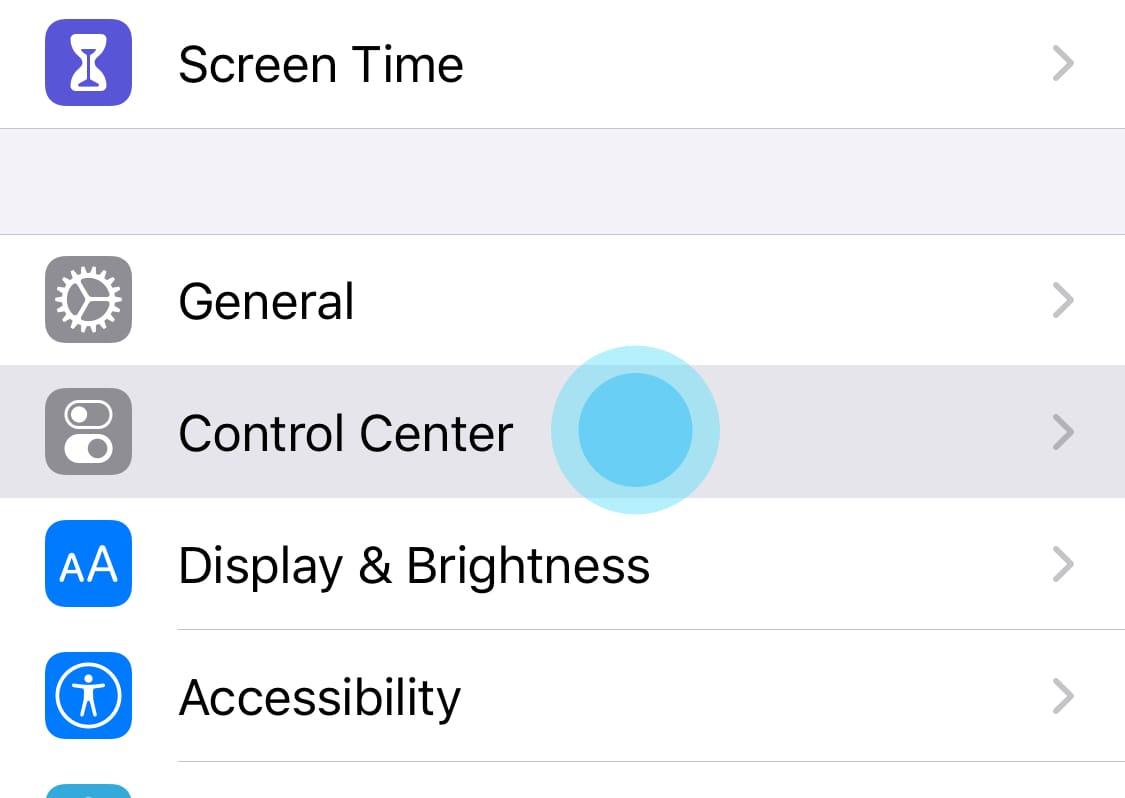
1. Open the system's **Settings** App and tap **Control Center**.

   <div align="left"><img src="https://docs.picsew.app/assets/guide-recording-1.jpg" alt="" width="375"></div>
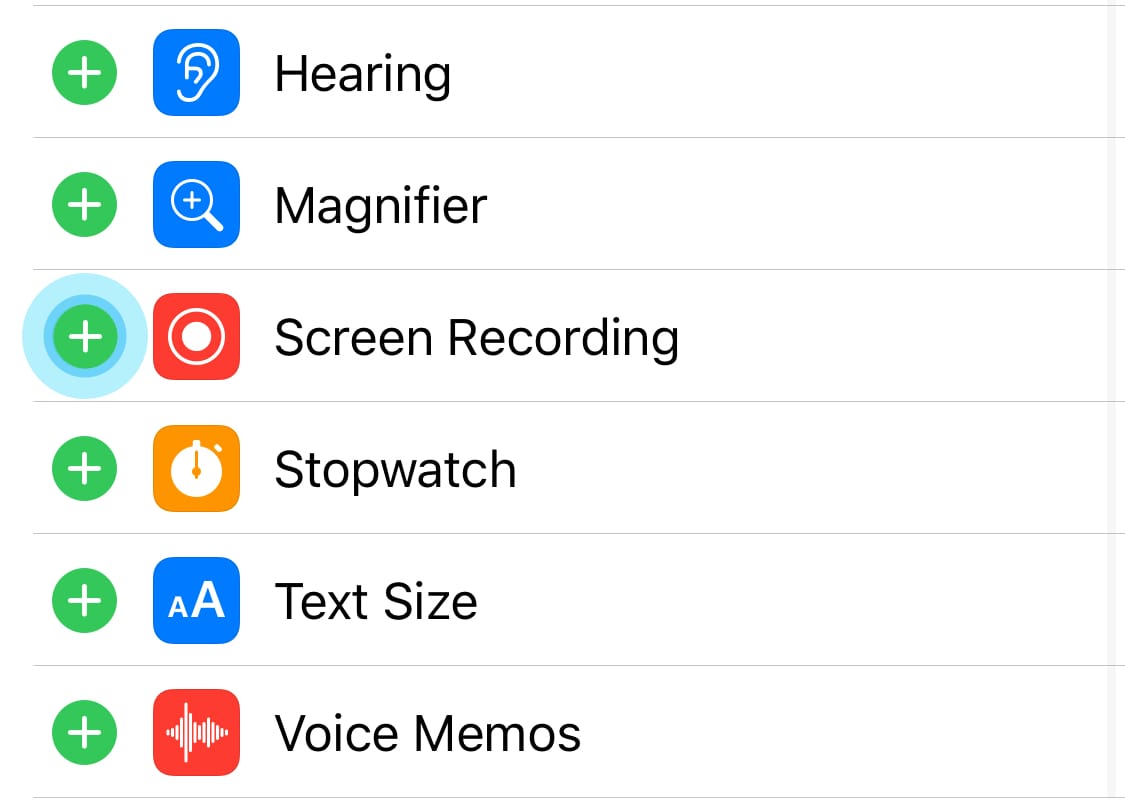
2. Enable **Screen Recording**.

   <div align="left"><img src="https://docs.picsew.app/assets/guide-recording-3.jpg" alt="" width="375"></div>

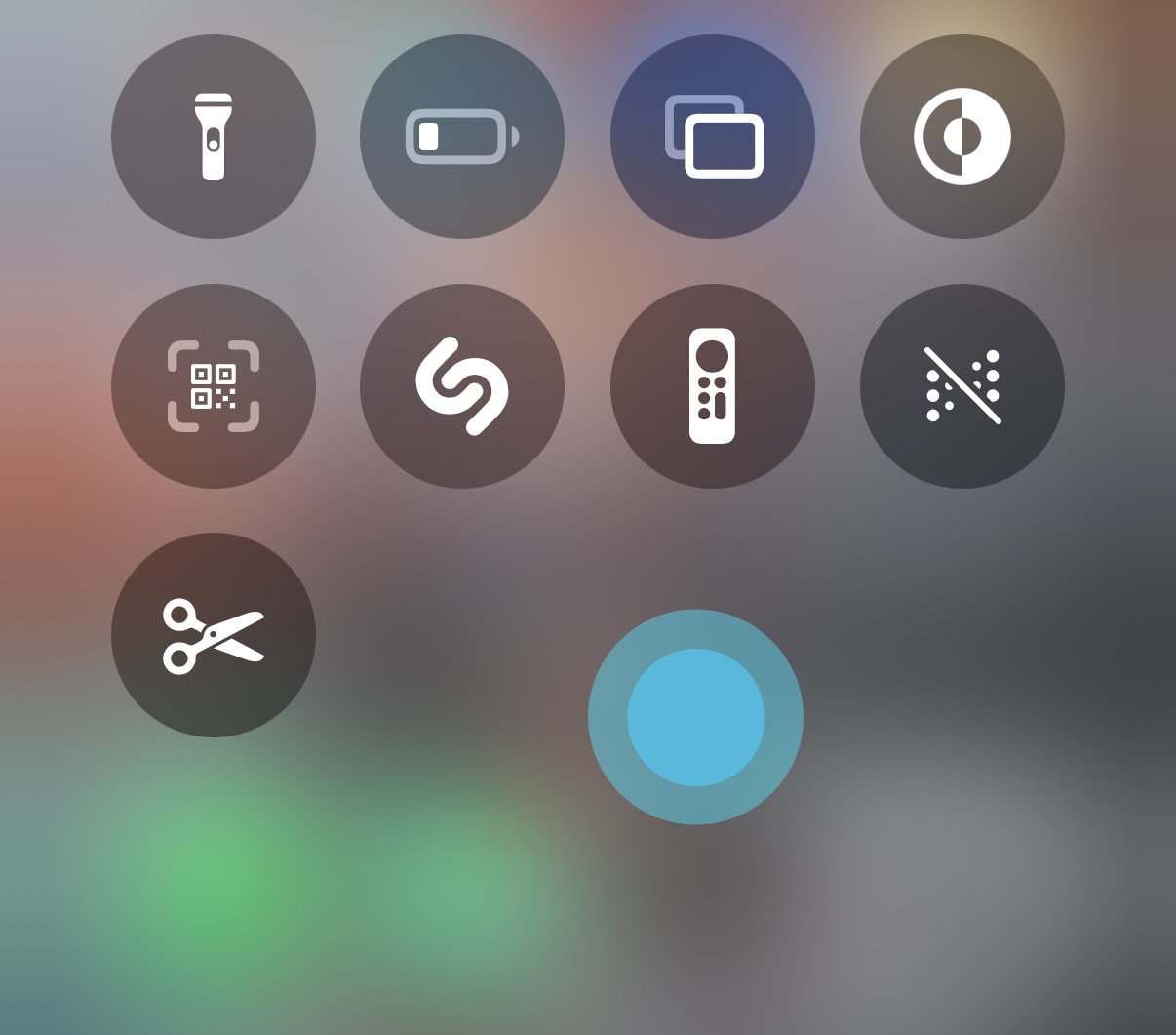
* ### iOS 18 and later

1. Long press any blank area in Control Center

   <div align="left"><img src="https://docs.picsew.app/assets/control-center-ios18-edit-1.jpg" alt="" width="375"></div>
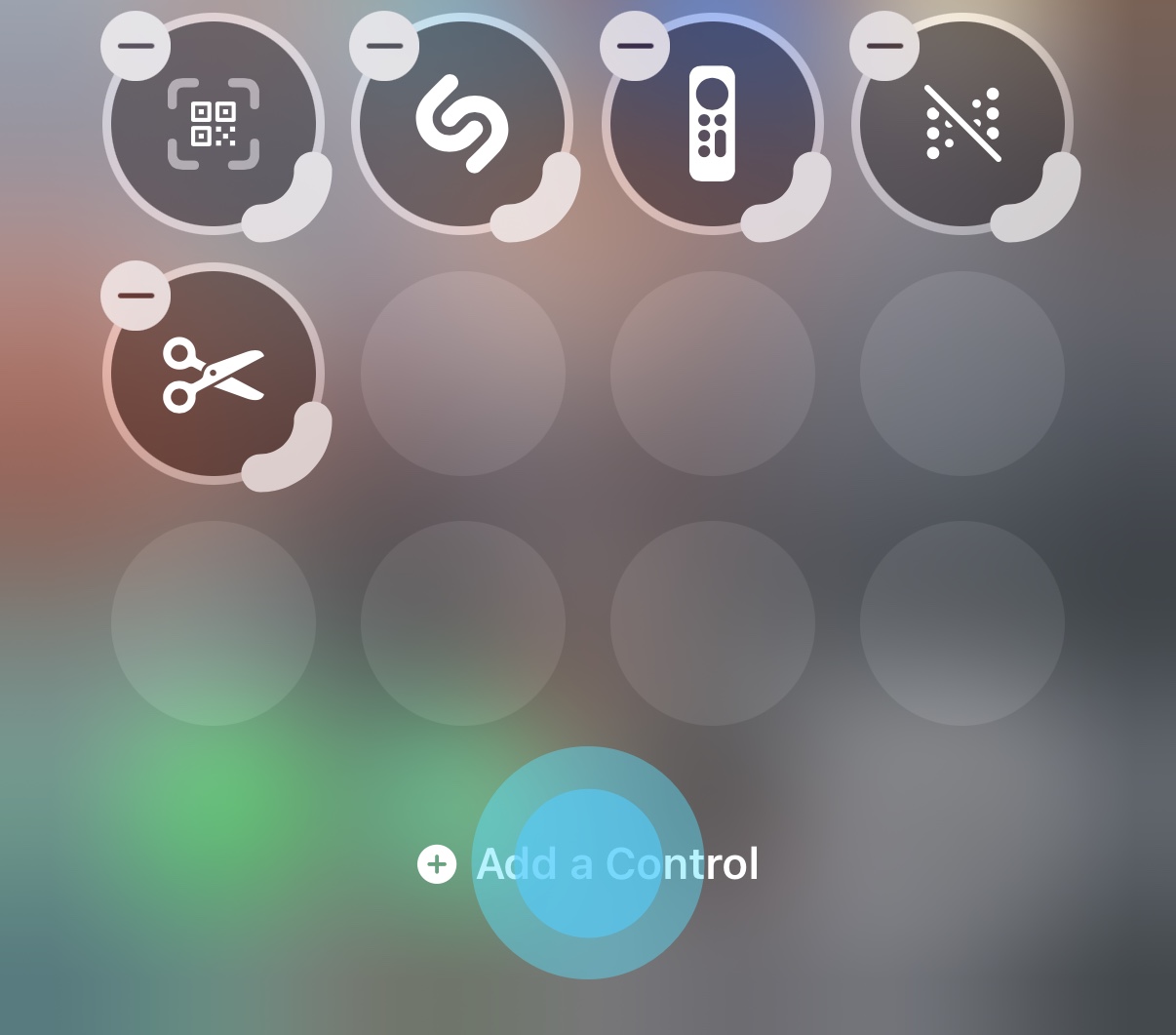
2. Tap **Add a Control**

   <div align="left"><img src="https://docs.picsew.app/assets/control-center-ios18-edit-2.jpg" alt="" width="375"></div>
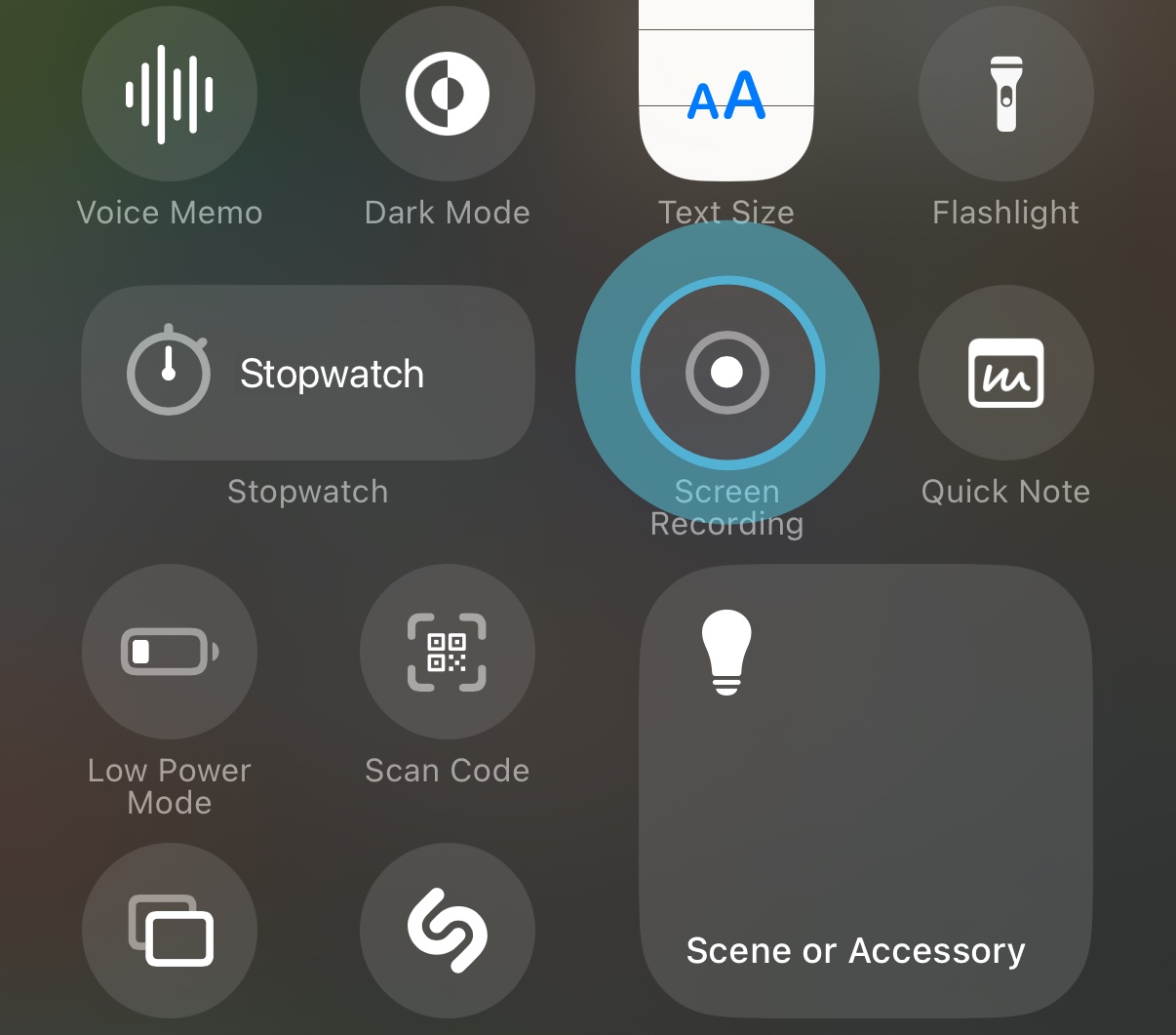
3. Choose **Screen Recording**

   <div align="left"><img src="https://docs.picsew.app/assets/control-center-ios18-edit-3.jpg" alt="" width="375"></div>

<br>

## 2.**Start capturing a scrolling long image**

{% hint style="info" %}
Pull down to open the **Control Center**, then **press and hold** the **Screen Recording** icon.
{% endhint %}

<div align="left"><figure><img src="https://595710615-files.gitbook.io/~/files/v0/b/gitbook-x-prod.appspot.com/o/spaces%2FLyo1vV206PUgiKh7dzZ3%2Fuploads%2FhZr6iZUyKysFO0D9BiLd%2Fimage.png?alt=media&#x26;token=21ea1b92-d71d-4a94-ae90-ad9eb0515a1a" alt="" width="375"><figcaption></figcaption></figure></div>

{% hint style="info" %}
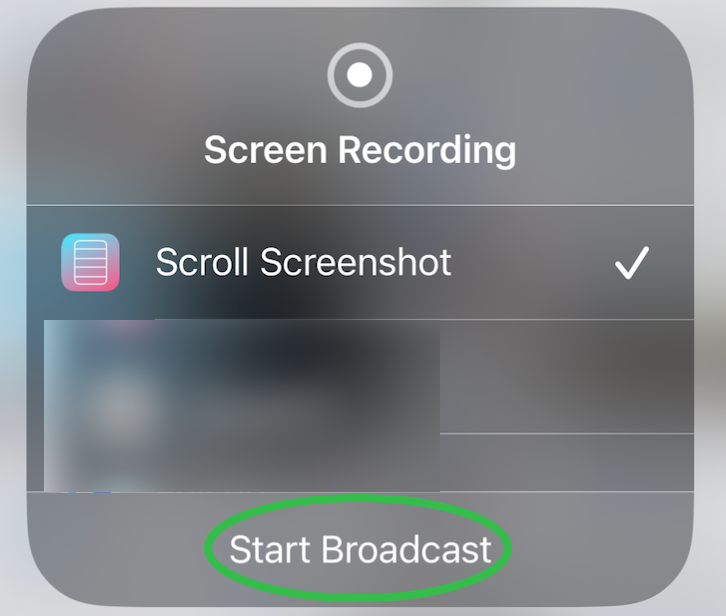
Check **Scrolling Long Screenshot**, tap **Start Broadcast**, and immediately return to the page you want to capture.
{% endhint %}

> ⚠️ **Note:** If **Scrolling Long Screenshot** does not appear in the list, try restarting your phone and try again (there may be a delay after first installation).、

<div align="left"><figure><img src="https://595710615-files.gitbook.io/~/files/v0/b/gitbook-x-prod.appspot.com/o/spaces%2FLyo1vV206PUgiKh7dzZ3%2Fuploads%2F6uBDIiiWdHkyBBwd80e6%2Fimage.png?alt=media&#x26;token=f2aec582-ca6c-46c5-a378-8bcc78313134" alt="" width="363"><figcaption></figcaption></figure></div>

## 3.**Finish capturing the scrolling long image**

{% hint style="info" %}
After you stop scrolling, wait **1 second** and the recording will stop automatically.

Tap **Go to App** to view the result.
{% endhint %}

<div align="left"><figure><img src="https://595710615-files.gitbook.io/~/files/v0/b/gitbook-x-prod.appspot.com/o/spaces%2FLyo1vV206PUgiKh7dzZ3%2Fuploads%2FShOFH2Gg5uqkkxle0LUF%2Fimage.png?alt=media&#x26;token=6863ea4d-38b2-4cfd-9567-22fa1e5af9bf" alt="" width="375"><figcaption></figcaption></figure></div>

{% hint style="info" %}
Open the app to automatically complete the long image stitching.
{% endhint %}
<div align="left"><figure><img src="https://595710615-files.gitbook.io/~/files/v0/b/gitbook-x-prod.appspot.com/o/spaces%2FLyo1vV206PUgiKh7dzZ3%2Fuploads%2FcfG7HfGtjVx4pVhhrSgQ%2Fimage.png?alt=media&#x26;token=eefff61b-b38a-4fd8-b543-bb4b39cb897c" alt="" width="314"><figcaption></figcaption></figure></div>